
Resize & Compress Images Online
Upload up to five images, set individual dimensions, formats and target sizes, then process them together.
Privacy: images are temporarily processed on the ResearchHunger server and are not saved to the Media Library. Temporary processing files are removed after each request.
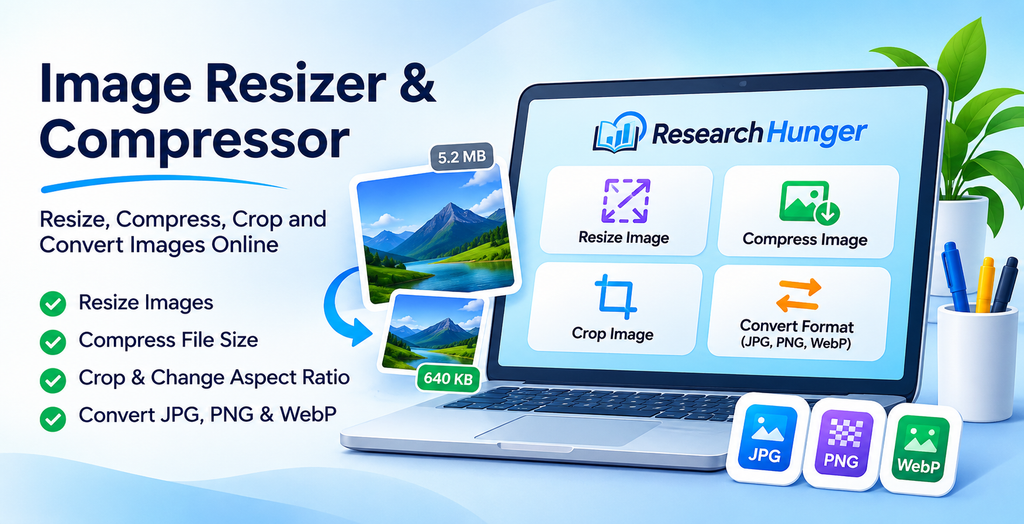
Free Image Resizer and Compressor Online
Need to resize a photo, reduce its file size, crop an image or convert it to another format? The ResearchHunger Image Resizer and Compressor brings these useful image editing features together in one convenient online tool.
Whether you are preparing pictures for a website, resizing images for social media, reducing file sizes for online forms or converting images for everyday use, this tool helps you make the adjustments you need without complicated editing software.
Use the image tool above to get started. Choose an image, adjust its dimensions or aspect ratio, select your preferred output format and download the result.
What Can You Do With Our Image Resizer and Compressor?
Our online image tool brings four practical image editing features together.
1. Resize Images to Any Dimension
Change the width and height of an image to suit your requirements. Image resizing is useful when a website, application, document or online form requires specific image dimensions.
You can use image resizing to:
- Prepare pictures for websites and blogs.
- Adjust photographs for documents and presentations.
- Resize images for social media posts.
- Create thumbnails and smaller image versions.
- Fit pictures into specific width and height requirements.
For the best results, maintain the original aspect ratio when you want to prevent the image from looking stretched or distorted.
2. Compress Images and Reduce File Size
Large image files can take longer to upload and may increase the amount of storage or bandwidth a website uses. Image compression helps reduce file size while keeping the image visually useful.
Use image compression when you want to:
- Reduce the size of images before uploading them.
- Prepare pictures for email attachments.
- Make website images lighter.
- Save storage space on your device.
- Share images more conveniently.
The amount of compression possible depends on the original image, its dimensions, format and quality settings. Higher compression can reduce file size further, but may also reduce image quality.
3. Convert Images Between JPG, PNG and WebP
Different image formats are useful for different purposes. Our image conversion feature helps you prepare images in a format that better suits your needs.
JPG or JPEG: A popular choice for photographs and everyday images. It usually provides a good balance between visual quality and file size.
PNG: Useful for graphics, screenshots, logos and images that need transparency or sharp edges.
WebP: A modern image format designed to provide efficient image compression for websites and online use.
Choose the format that works best for your intended use, then download the converted image.
4. Crop Images and Change Aspect Ratio
Sometimes an image has the right subject but the wrong shape or framing. Cropping and aspect-ratio adjustment help you prepare it for different platforms and layouts.
Common aspect ratios include:
- 1:1: Square images, often used for profile pictures and social posts.
- 4:5: Portrait-style social media images.
- 16:9: Landscape images, video thumbnails and presentations.
- 9:16: Vertical images for stories and short-form videos.
- 3:2: A common photography format.
- 4:3: A traditional photo and display format.
Cropping removes unwanted parts of an image, while changing the aspect ratio adjusts its shape. Choose the option that best suits your intended result.
How to Resize and Compress an Image Online
Follow these simple steps to prepare your image:
- Select an image: Choose the image you want to edit from your device.
- Adjust dimensions: Enter the required width and height, if you want to resize it.
- Crop or change the aspect ratio: Select a suitable ratio or adjust the crop area when available.
- Choose compression and format settings: Adjust the available quality settings and select your preferred output format.
- Preview your result: Check that the image looks correct and that important details are not cut off.
- Download the image: Save the finished image to your device.
The available settings may vary depending on the selected image and the options provided by the tool.
Which Image Format Should You Choose?
Choosing the right image format can make a difference to image quality, file size and compatibility.
| Image format | Best suited for |
|---|---|
| JPG / JPEG | Photographs and everyday images |
| PNG | Logos, graphics, screenshots and transparency |
| WebP | Website images and efficient online delivery |
For photographs, JPG is often a practical choice. For graphics that need transparency, PNG is useful. WebP is worth considering when preparing images for modern websites.
Always check that the platform or application where you plan to use the image supports your chosen format.
“Learn more about image formats in the MDN guide to image file types.”
Image Resizing vs Image Compression: What’s the Difference?
Image resizing and image compression are related, but they solve different problems.
Image resizing changes the dimensions of an image, such as reducing its width from 3000 pixels to 1200 pixels.
Image compression reduces the amount of data needed to store an image, usually making the file smaller without necessarily changing its dimensions.
For example, a large photograph may have dimensions of 4000 × 3000 pixels. Resizing it to 1600 × 1200 pixels reduces its dimensions. Compressing the resized image can further reduce its file size.
If you need both a smaller image and a smaller file, resizing and compression can be used together.
Tips for Getting Better Image Results
A few simple practices can help you get the right balance between image quality and file size.
- Keep the original image as a backup before editing.
- Maintain the aspect ratio when resizing photographs.
- Avoid excessive compression when image details are important.
- Use PNG when transparency is required.
- Consider JPG for photographs and WebP for website images.
- Preview the image before downloading it.
- Choose dimensions appropriate for the place where the image will be displayed.
Remember that enlarging a small image does not automatically restore details that were not present in the original.
Frequently Asked Questions
Is the ResearchHunger Image Resizer and Compressor free?
The tool is provided for free on ResearchHunger. You can use its available image editing features without purchasing image editing software.
Can I resize an image to a specific width and height?
Yes. You can adjust the image dimensions to meet your requirements using the available width and height settings.
Can I reduce an image to a smaller file size?
Yes. Image compression helps reduce file size. The final size depends on the original image and the compression settings you choose.
Can I convert JPG to PNG or WebP?
Yes. You can select a supported output format, such as JPG, PNG or WebP, using the image conversion options.
Does resizing an image reduce its quality?
Resizing an image to smaller dimensions removes pixels, which can reduce detail. Enlarging an image may also make it look less sharp. Preview your result before downloading it.
What is the difference between cropping and resizing?
Resizing changes the dimensions of the image. Cropping removes unwanted areas from the image. Cropping is useful when you want to focus on a particular subject or fit a specific aspect ratio.
Which image format is best for websites?
WebP is a useful option for website images because it supports efficient compression. JPG is also widely used for photographs, while PNG is suitable for graphics that need transparency.
Can I use this tool for social media images?
Yes. You can prepare images for social media by adjusting their dimensions, cropping them and selecting a suitable aspect ratio.
Why does my compressed image still have a large file size?
The result depends on the original image dimensions, image content, format and compression settings. Photographs with many details may remain larger than simple graphics even after compression.
Should I keep a copy of my original image?
Yes. Keeping the original image is a good practice, especially if you may need to make further edits or create another version later.
Resize, Compress and Convert Images with ResearchHunger
Preparing images should not require complicated software or advanced editing skills. The ResearchHunger Image Resizer and Compressor brings image resizing, compression, cropping and format conversion together in one convenient place.
“Our free image resizer and compressor makes it easy to adjust image dimensions, reduce file sizes and prepare pictures for websites and social media.”
Use the tool above to prepare your images for websites, documents, social media and everyday digital tasks.
ResearchHunger – Useful Tools. Simple Solutions.